We have completed 50+ platform migrations without losing organic rankings. Not because we are lucky -- because we treat SEO preservation as a core engineering requirement, not a post-launch afterthought.
A Magento-to-Adobe Commerce migration is one of the most technically demanding platform transitions in ecommerce. The underlying architecture changes, URL structures shift, template systems get rebuilt, and if nobody is watching the SEO implications, months or years of organic search equity can vanish overnight. We have seen mid-market retailers lose 40-60% of their organic traffic after a botched migration -- traffic that took years to build and months to recover.
The good news: this is entirely preventable. Every ranking drop we have ever investigated after a migration traces back to a skipped step in the process below. Follow this checklist and your organic traffic will not just survive the migration -- it will often improve, because Adobe Commerce gives you better technical SEO foundations to build on.
Here is the exact checklist we follow, broken into three phases: before, during, and after migration.
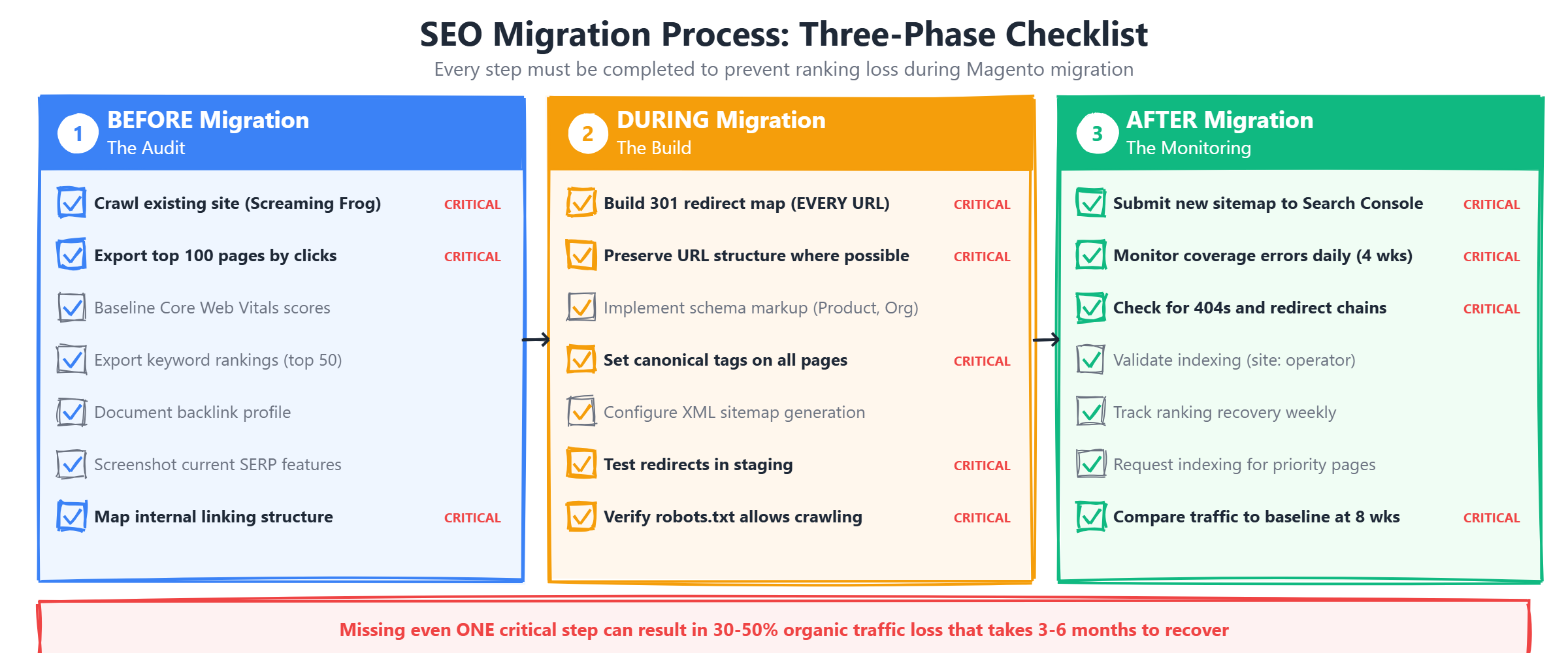
Before Migration: The Audit
The pre-migration audit is where you build the foundation for a successful transition. Skip this phase and you are flying blind -- you will not know what you had, so you will not know what you lost. Every hour invested here saves ten hours of recovery work later.
1. Crawl Your Existing Site
Use a dedicated crawling tool like Screaming Frog SEO Spider or Sitebulb to perform a comprehensive crawl of every URL on your current Magento store. This crawl becomes your single source of truth -- the master reference for building your redirect map, identifying broken pages, and validating the migration after launch.
For a typical mid-market Magento store, expect to crawl between 5,000 and 50,000 URLs. Larger catalogs with extensive layered navigation (color, size, brand filters) can push well beyond 100,000 URLs when you include all filter combination pages. Set your crawl depth to at least 10 levels and configure the crawler to respect your robots.txt while also crawling any blocked sections you plan to migrate.
Export the following data points for every URL discovered:
- All product URLs including configurable, grouped, and bundle product variants
- Category URLs including filtered and layered navigation URLs with query parameters
- CMS pages, blog posts, and any custom landing pages
- Image URLs, especially any that are indexed in Google Image Search
- Full page titles and meta descriptions for every URL
- H1 tags on every page
- Canonical tag values (self-referencing and cross-referencing)
- HTTP status codes (identify any existing 301s, 302s, 404s, and 500s)
- Internal link counts -- how many internal links point to each page
- Response times for each URL to establish a performance baseline
Save this crawl data in a spreadsheet you can reference throughout the entire migration. We recommend running the crawl twice -- once at the start of planning and once immediately before the migration begins -- to capture any changes made in the interim.
2. Identify Your Ranking Pages
Not all pages are equal, and your migration plan should reflect that reality. The Pareto principle applies strongly to ecommerce SEO: typically 20% of your pages drive 80% of your organic traffic. These high-value pages need priority treatment at every stage of the migration.
Start with your Google Search Console Performance report. Set the date range to the last 12 months to account for seasonal variations. Export the top 100 pages ranked by clicks, then separately export the top 100 pages by impressions. The clicks report shows you where your traffic actually comes from. The impressions report reveals pages that have ranking potential but may not yet be driving significant clicks -- these are opportunities you do not want to lose during migration.
Cross-reference this Search Console data with your analytics platform to identify pages that drive the most revenue, not just the most traffic. A product page ranking position three for a high-commercial-intent keyword might drive more revenue than a blog post ranking position one for an informational query.
- Pages with the most organic clicks over the last 12 months
- Pages ranking in positions 1-10 for your target commercial keywords
- Pages with the most external backlinks (export from Ahrefs or Semrush)
- Pages with the highest conversion rates from organic traffic
- Category pages that serve as hub pages with strong internal link equity
Critical: These pages get priority treatment in the redirect map. A broken redirect on a page that drives 10,000 visits per month is a revenue emergency. Flag every page in your top 100 as high-priority and assign a team member to manually verify each one after migration.
3. Document Current Performance
Baseline everything before migration so you can measure impact after launch. Without documented pre-migration metrics, you have no way to identify regressions or prove that the migration was successful. This baseline also protects you politically -- if stakeholders claim traffic dropped, you need data to show whether that is accurate or just perception.
Capture the following metrics and store them in a shared document that your entire team can access:
Take screenshots of your Search Console dashboards and save them with dates. Automated tracking tools can lose historical data or change their methodology, but screenshots are permanent proof of your pre-migration state.
During Migration: The Build
The build phase is where the technical execution happens. Every decision made here has a direct impact on whether your organic traffic survives the transition. The redirect map is the single most important deliverable in this phase -- get it wrong and nothing else matters.
4. Build the 301 Redirect Map
The 301 redirect map is the most critical deliverable in any platform migration. Every old URL that will change must map to its equivalent new URL with a permanent 301 redirect. No exceptions. A missing redirect means a 404 error, a 404 error means lost link equity, and lost link equity means lost rankings. For a mid-market store with 10,000+ URLs, even a 5% miss rate means 500 broken pages.
Magento 1 and Magento 2 (Adobe Commerce) use different URL formats by default. Understanding these differences is essential for building an accurate redirect map. Here are the most common URL pattern changes you will encounter:
For large catalogs, build your redirect map programmatically rather than manually. Export your product and category data from both the old and new platforms, then match records by SKU, category ID, or another unique identifier. Use a script to generate the redirect rules in the format your web server requires.
          # Example redirect map format (Apache .htaccess):
Redirect 301 /old-category/product-name.html /new-category/product-name
Redirect 301 /catalog/category/view/id/42 /category-name
Redirect 301 /cms/page/view/page_id/5 /about-us

# Regex pattern for bulk product redirects (Nginx):
rewrite ^/catalog/product/view/id/(\d+)$ /products/$1-redirect permanent;

# Handle .html suffix removal:
rewrite ^(.+)\.html$ $1 permanent;
Common redirect mistakes that will cost you rankings:
- Redirecting everything to the homepage -- this destroys all page-level link equity and tells Google that none of your old pages have equivalents
- Missing category filter URLs from layered navigation -- these often have backlinks and rankings of their own
- Forgetting paginated URLs (/category?p=2, /category?p=3) -- Google may have indexed dozens of pagination pages
- Not handling URL suffix changes (.html to no extension or vice versa) -- this affects every single URL on the site
- Using 302 temporary redirects instead of 301 permanent redirects -- 302s do not pass full link equity
- Creating redirect chains (A redirects to B, B redirects to C) -- each hop loses a small amount of link equity and slows crawling
Test every redirect before launch. Use a tool like Screaming Frog in list mode to crawl all your old URLs and verify that each one returns a 301 status code pointing to the correct new URL. Any redirect returning a 404, 302, or redirect chain needs to be fixed before go-live.
5. Preserve URL Structure Where Possible
The best redirect is no redirect at all. If you can keep the same URL structure on Adobe Commerce, do it. Less risk, less complexity, faster indexing of the new site. Every redirect introduces a small amount of friction for both search engine crawlers and users, so preserving existing URLs eliminates that friction entirely.
Adobe Commerce gives you significant control over URL structure through its URL rewrite module. Before building your redirect map, configure the new platform to match your existing URL patterns as closely as possible. Key decisions to make:
- Trailing slash consistency: If your old site used trailing slashes (/category/), configure Adobe Commerce to do the same. Inconsistency creates duplicate content issues.
- .html suffix handling: Magento historically appended .html to product and category URLs. Decide whether to keep this convention or remove it -- but be consistent and redirect all old variations.
- URL key best practices: Use the URL key field in Adobe Commerce to match your existing product and category slugs exactly. Do not let the system auto-generate new URL keys from product names.
- Category path in URLs: Decide whether product URLs should include the category path (/shoes/running/nike-air.html) or be flat (/nike-air.html). Flat URLs are easier to maintain long-term.
- Store view prefixes: If you use multiple store views for different languages or regions, plan your URL prefix strategy (/en/, /au/) before migration to avoid double redirects later.
When you must change URLs -- for example, to clean up a messy legacy URL structure -- limit the changes to one migration at a time. Do not change URLs and switch domains simultaneously. Each change compounds the risk.
6. Implement Schema Markup
A platform migration is the perfect opportunity to add or improve your structured data implementation. Schema markup helps search engines understand your content and can unlock rich results in the SERPs -- product ratings, pricing, availability, breadcrumb trails, and FAQ accordions that increase your click-through rate.
Adobe Commerce includes some built-in schema markup, but it is typically minimal and often outdated. For a competitive mid-market store, you need a comprehensive structured data strategy that goes beyond the defaults:
- Product schema (Product): Include price, currency, availability, SKU, brand, aggregate rating, review count, and product images. Adobe Commerce's default product schema often misses the brand and aggregate rating fields -- add these manually or through an extension.
- Breadcrumb schema (BreadcrumbList): Implement on every page to get enhanced breadcrumb display in search results. Adobe Commerce supports this natively, but verify it outputs correctly after migration since theme changes can break the markup.
- Organization schema (Organization): Add to your homepage and contact page with your company name, logo, address, phone number, social media profiles, and sameAs links. This reinforces your brand entity in Google's Knowledge Graph.
- FAQ schema (FAQPage): Add to category pages, service pages, and relevant blog posts where you answer common customer questions. This can generate FAQ rich results that dominate SERP real estate.
- LocalBusiness schema: If you have physical stores, add LocalBusiness markup with address, hours, and geo-coordinates for each location.
- Article schema (Article or BlogPosting): Add to all blog and content pages with author, datePublished, dateModified, and publisher information.
Implement all schema markup in JSON-LD format in the page head. Validate every schema type using Google's Rich Results Test before and after migration. Keep a record of which pages had schema markup on the old site so you can verify nothing was lost during the transition.
After Migration: The Monitoring
The migration is not done when the new site goes live. The first four weeks after launch are critical -- this is when Google recrawls your site, discovers the redirects, and decides whether to trust the new URLs. Active monitoring during this period lets you catch and fix issues before they become permanent ranking losses.
7. Submit the New Sitemap
Generate a fresh XML sitemap on your new Adobe Commerce platform and submit it to Google Search Console immediately after launch. Also submit it to Bing Webmaster Tools -- Bing powers several other search engines and AI assistants, so it is worth the two minutes of effort.
Before submitting, verify that your sitemap includes all important pages and excludes any that should not be indexed (staging URLs, internal search results, filtered navigation pages you want to noindex). Check the sitemap for common issues: duplicate URLs, non-200 status codes, URLs blocked by robots.txt, and URLs with noindex tags. A sitemap should only contain pages you actively want Google to crawl and index.
Keep the old sitemap accessible temporarily. Google uses the old sitemap to discover your redirect map -- it will crawl the old URLs, follow the 301 redirects, and associate the old page signals with the new URLs. Removing the old sitemap too early slows down this discovery process.
8. Monitor Search Console Daily for 4 Weeks
The first four weeks after migration require daily monitoring in Google Search Console. You are looking for problems that need immediate intervention -- every day a broken redirect or crawl error persists, it compounds the damage to your rankings.
Here is your monitoring schedule with specific checks for each time period:
Set up email alerts in Search Console for coverage issues and manual actions. Do not rely on checking the dashboard manually -- automated alerts ensure you catch problems even on days you forget to log in.
9. Validate Indexing
After submitting your new sitemap, actively verify that Google is indexing your new URLs correctly. Do not assume that submitting a sitemap means Google will immediately index everything -- large sites can take weeks to fully reindex, and problems can block indexing silently.
Start with the site: operator in Google Search. Run a search for site:yourdomain.com and check the total number of results. Compare this to your pre-migration indexed page count from the Coverage report. A significant drop indicates indexing problems that need investigation.
Next, check the Index Coverage report in Search Console. Look at the "Valid" count and compare it to your baseline. Pay special attention to the "Excluded" section -- common post-migration exclusion reasons include:
- "Crawled - currently not indexed" -- Google found the page but chose not to index it, possibly due to thin content or duplicate content issues on the new platform
- "Discovered - currently not indexed" -- Google knows the URL exists but has not crawled it yet, which is normal in the first week but concerning after two weeks
- "Duplicate without user-selected canonical" -- the new site may have canonical tag issues, especially on filtered navigation pages
- "Page with redirect" -- expected for old URLs, but check that the redirect destination is correct
- "Blocked by robots.txt" -- verify your new robots.txt is not accidentally blocking important sections
For your top 50 priority pages, use the URL Inspection tool to check each one individually. If a high-priority page is not yet indexed, use the "Request Indexing" feature to push it to the front of Google's crawl queue. You are limited to approximately 10 indexing requests per day, so prioritize by traffic value.
The 5 Most Common SEO Migration Mistakes
After completing 50+ Magento migrations, we see the same mistakes repeated across projects. Each one is entirely preventable, but each one is also devastatingly effective at destroying organic traffic when it happens. Here are the five mistakes that cause the most damage, in order of severity.
Mistake 1: No redirect map (or an incomplete redirect map). This is the most common and most destructive error. When old URLs return 404 errors instead of 301 redirects, Google drops those pages from the index within days. Every backlink pointing to those URLs stops passing authority. The typical traffic loss from a missing redirect map is 30-50% of organic traffic, and recovery takes 3-6 months because you have to wait for Google to recrawl and reindex everything after you add the redirects retroactively. Prevention: build the redirect map before writing a single line of migration code, and test every redirect before launch.
Mistake 2: Changing URL structure and domain simultaneously. Changing your URL paths from /catalog/product/view/id/123 to /product-name is one variable. Changing your domain from old-brand.com to new-brand.com is another variable. Doing both at once makes it nearly impossible to diagnose problems when they arise. If rankings drop, is it the URL change or the domain change? You cannot tell. Prevention: migrate the platform first, keep the same domain. Change the domain later as a separate project if needed.
Mistake 3: Launching without removing robots.txt restrictions. During development, the staging site is typically blocked from search engines with a robots.txt Disallow rule or a site-wide noindex meta tag. When the new site goes live, someone has to remove these restrictions. It sounds obvious, but we have seen multiple migrations where the new site launched with robots.txt still blocking Googlebot. Every day the block remains, indexing falls further behind. Prevention: add "remove robots.txt staging restrictions" as a mandatory item on your go-live checklist. Verify it within 60 seconds of DNS propagation.
Mistake 4: Not preserving the internal linking structure. Internal links distribute authority across your site. When a migration changes the navigation structure, removes sidebar links, or alters the footer, pages that previously received strong internal link equity can suddenly become orphaned. The rankings of those pages will decline even if their URLs and content remain identical. Prevention: crawl both the old and new sites and compare internal link counts per page. Any page with significantly fewer internal links on the new site needs attention.
Mistake 5: Ignoring non-page assets that have backlinks. PDFs, images, and downloadable files can accumulate backlinks over time. Product installation guides, sizing charts saved as PDFs, and high-resolution product images are common examples. If these files are not migrated to the same URLs (or redirected), the backlinks pointing to them are wasted. Prevention: export your backlink profile and filter for non-HTML URLs. Include these in your redirect map alongside regular page URLs.
What to Expect: The SEO Recovery Timeline
Even a perfectly executed migration will cause short-term ranking fluctuations. Understanding the normal recovery timeline helps you distinguish between expected volatility and genuine problems that need intervention.
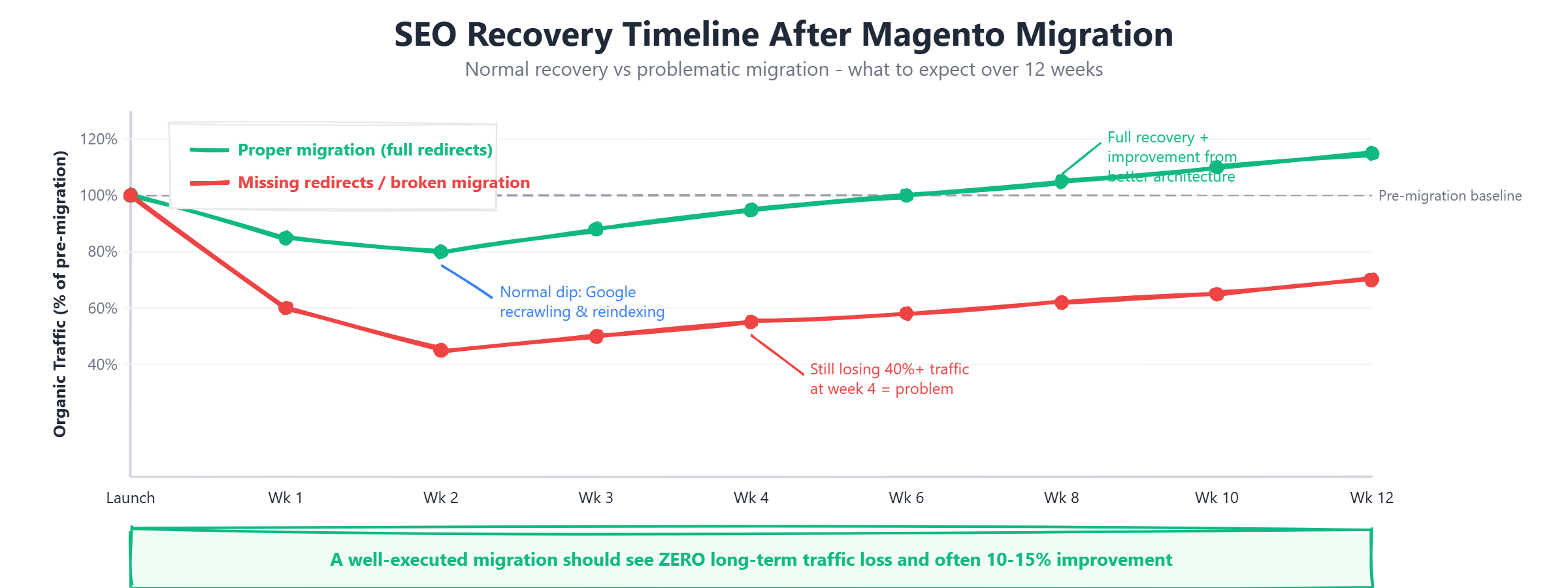
Weeks 1-2: Rankings will fluctuate, sometimes dramatically. Google is discovering your redirects, recrawling pages at new URLs, and reassessing content. You may see some keywords jump up and others drop. This is normal. Do not panic and do not make changes unless you identify a clear technical error like missing redirects or blocked pages.
Weeks 3-4: Google has recrawled and reindexed most of your pages by this point. Rankings should begin to stabilize. Your indexed page count in Search Console should be approaching your pre-migration baseline. If you are still seeing significant coverage gaps, investigate -- something is preventing Google from indexing your new URLs.
Months 2-3: Rankings stabilize fully or begin to improve. If your new Adobe Commerce site has better Core Web Vitals, cleaner URL structure, and improved schema markup, you may start seeing ranking improvements over your pre-migration baseline. This is the payoff for doing the migration correctly.
Months 3-6: Full recovery plus potential improvement from the better site architecture. By this point, any remaining ranking differences compared to your baseline are likely due to content or competition changes, not the migration itself.
A well-executed migration should see zero long-term traffic loss. If you lose more than 10% of organic traffic after 8 weeks and it is not recovering, something was missed in the migration. Audit your redirect map, check for crawl errors, and verify that all high-priority pages are indexed correctly. The sooner you identify and fix the issue, the faster the recovery.
The Bottom Line
Platform migrations do not have to kill your rankings. But they will if SEO is not planned from day one. At Qarbi, SEO preservation is built into every phase of our Magento migration process -- it is not a checkbox at the end. We treat the redirect map with the same rigor as database migration scripts, because losing your organic traffic is just as costly as losing your customer data.
The checklist above is the same process we follow for every migration, whether the store has 500 products or 50,000. The principles do not change -- only the scale of the redirect map and the monitoring effort. If you are planning a migration and want to make sure your organic traffic survives, book a free audit. We will review your current SEO baseline and map out exactly what needs to happen.
For a deeper look at why mid-market retailers are making this move in the first place, read our analysis of why mid-market retailers choose Magento over Shopify Plus.
Frequently Asked Questions
How long does SEO recovery take after a Magento migration?
Most sites see full SEO recovery within 4 to 12 weeks after a well-executed Magento-to-Adobe Commerce migration. Rankings typically fluctuate in weeks 1-2, stabilize in weeks 3-4, and reach pre-migration levels or better by month 2-3. Sites with comprehensive redirect maps and proper monitoring recover faster. If you have not recovered after 8 weeks, audit your redirect map for gaps and check Search Console for crawl errors.
Will I lose my Google rankings during migration?
You will likely see temporary ranking fluctuations during the first 2-4 weeks after migration. This is normal and expected as Google recrawls your site and processes the URL changes. However, if the migration is done correctly with a complete 301 redirect map, preserved URL structures where possible, and proper monitoring, you should not experience permanent ranking losses. The key is preparation -- a thorough pre-migration audit and tested redirect map prevent long-term traffic loss.
Do I need to rebuild all my backlinks after a Magento migration?
No. 301 permanent redirects transfer link equity (ranking power) from old URLs to new URLs. As long as every old URL that had backlinks is properly redirected to its equivalent new page, the backlink value is preserved. You do not need to contact other websites to update their links. However, you should verify that your redirect map covers all URLs with external backlinks by exporting your backlink profile from Ahrefs or Semrush and cross-referencing it with your redirect map.
Should I change my domain name during a Magento migration?
No. A platform migration and a domain change are two separate SEO events, and each carries its own risks. Combining them makes it impossible to diagnose problems when they occur -- you will not know whether ranking changes are caused by the platform change or the domain change. Complete the platform migration first, monitor for 3-6 months until everything is stable, and then consider a domain change as a separate project if still needed.
How many 301 redirects do I need for a Magento migration?
You need one 301 redirect for every URL that changes during the migration. For a typical mid-market Magento store, this means hundreds to thousands of redirects covering product pages, category pages, CMS pages, blog posts, and any other indexed URLs. A store with 5,000 products and 200 categories might need 6,000 or more individual redirects. Use programmatic redirect generation based on product SKUs and category IDs rather than manual mapping to handle this volume efficiently.
Ready to fix your store?
Book a free 30-minute audit. We'll review your setup and tell you exactly what we'd do differently.
Book a Free Audit